

Android Auto
On the Android phone, open Settings → Connected Devices → Connection Preferences → Android Auto → Customize Launcher. Enable D-Switch in the app list.
BTS programming guide · D-Switch
Name the circuits, assign each button, set sensible current limits and configure the controller’s day/night behaviour. These instructions follow the current PP0236D manual and apply to the D-Switch electronics included with DD8783.
F-150 mounting and wiring guide · Open manufacturer manual PP0236D
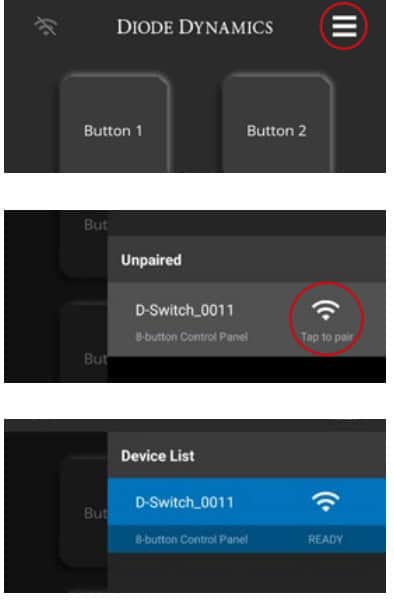
To unpair, open the Device List, press and hold the paired device name, choose Unpair and confirm. The manufacturer’s confirmation screen warns that controller settings will be lost; do not use unpairing casually as a reset step.
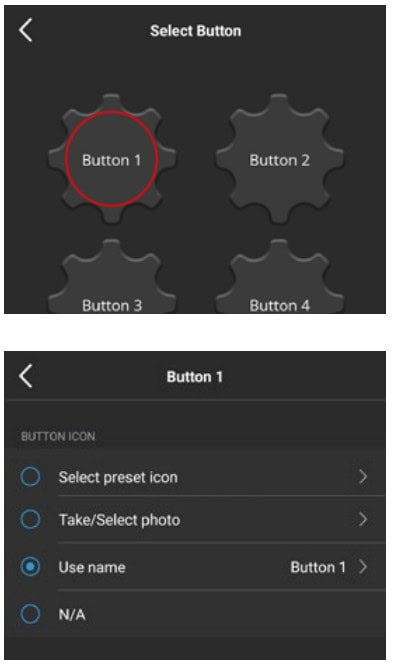
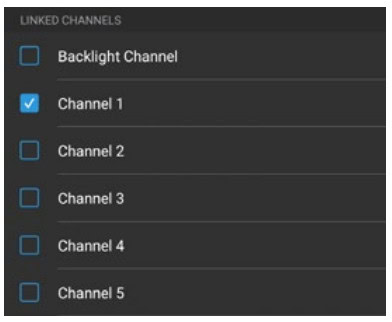
Initially, numbered buttons correspond to numbered outputs. After editing, verify the physical circuit controlled by every button before applying its label.
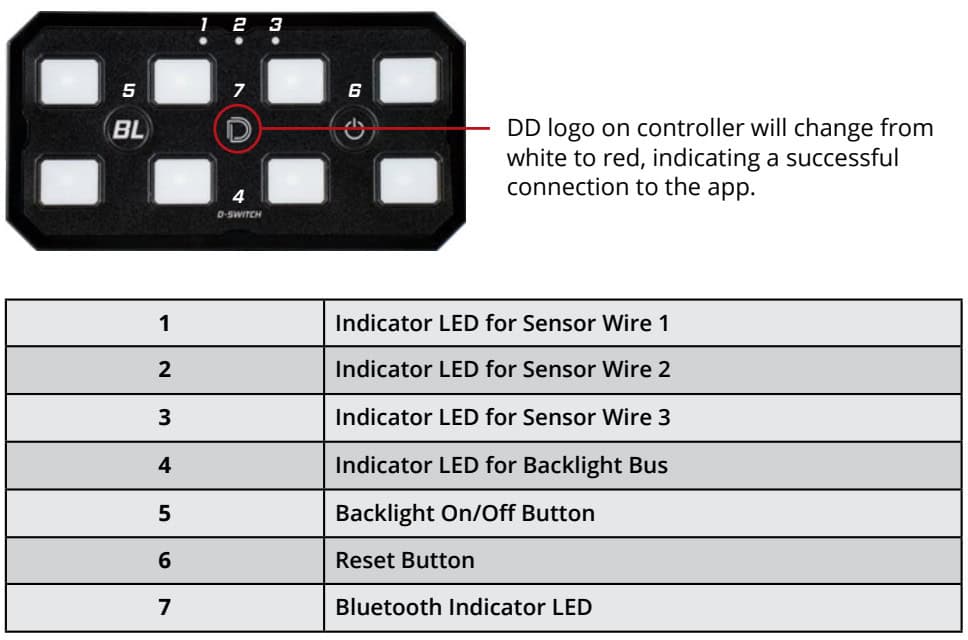
The physical BL button switches the dedicated backlight bus. The power/reset button switches all outputs off. Those two fixed buttons cannot be reassigned.
Open Settings → Output Channel and choose the circuit. Rename it and set Max Output Current. The manufacturer recommends about 10% above the connected accessory’s rated current—for example 11A for a 10A accessory—while remaining within the channel’s rating and the wiring/load limits.
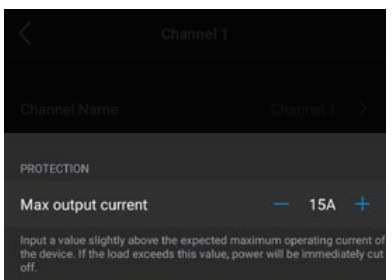
A device needing more than 30A requires an appropriate separately powered relay harness. Do not raise a limit past the channel rating to mask a fault or overload.
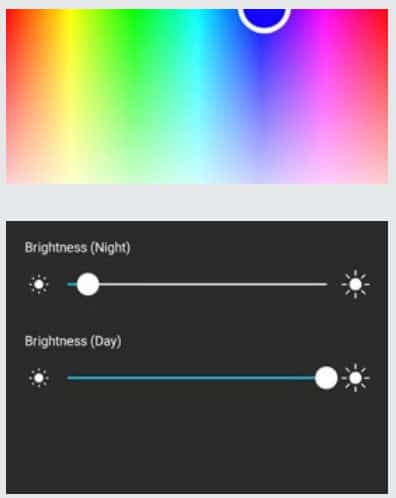
Controller illumination: Settings → Button Backlight lets you choose on-state, off-state and warning colours. Set independent day and night brightness levels. A +12V signal on the blue Night Mode lead changes the controller to its night setting.
Accessory backlights: the hub’s dedicated BL bus powers the lights’ accent/backlight circuits. Its fixed BL button switches that bus. This is separate from the colour of the controller’s own buttons.
Open Settings → Sensor Wire. Red is Sensor 1, black is Sensor 2 and green is Sensor 3. The blue Night Mode input can also be configured and additionally changes controller day/night illumination. White is the separate ignition connection.
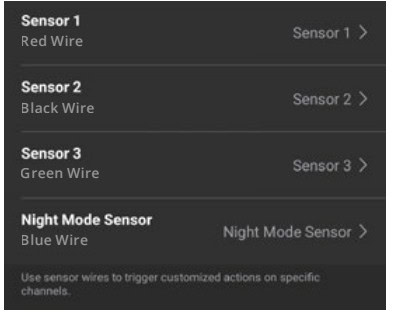
These inputs require discrete 12VDC signals. Do not connect them to CAN, LIN or CXPI data wiring. Mechanical relay-controlled loads must remain on/off; do not use PWM dimming.
In Settings → System, choose a controller name and your preferred temperature unit. Set Auto Cutoff Input Voltage for the vehicle and accessory use; this threshold switches the D-Switch off when supply voltage falls too low.
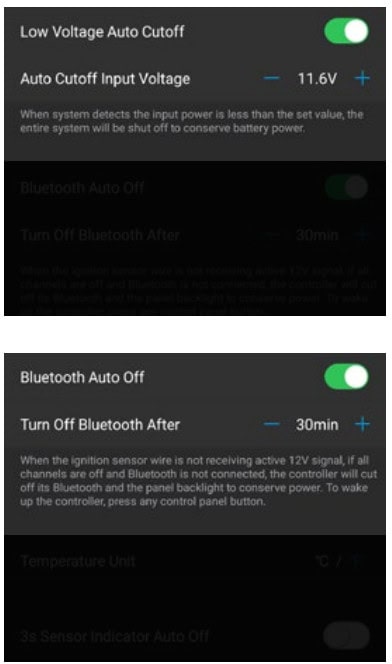
Bluetooth Auto Off can sleep the module and panel when the app is disconnected, every channel is off and the ignition lead has no 12V signal. The configurable timeout is 2–240 minutes; pressing a controller button wakes it. The 3s Sensor Indicator Auto Off option controls the small sensor indicator lights.
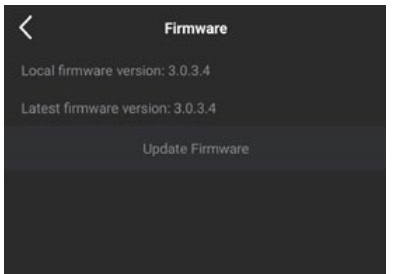
In Settings → Firmware, review the installed version and select an available update. Follow the app’s current update prompts.
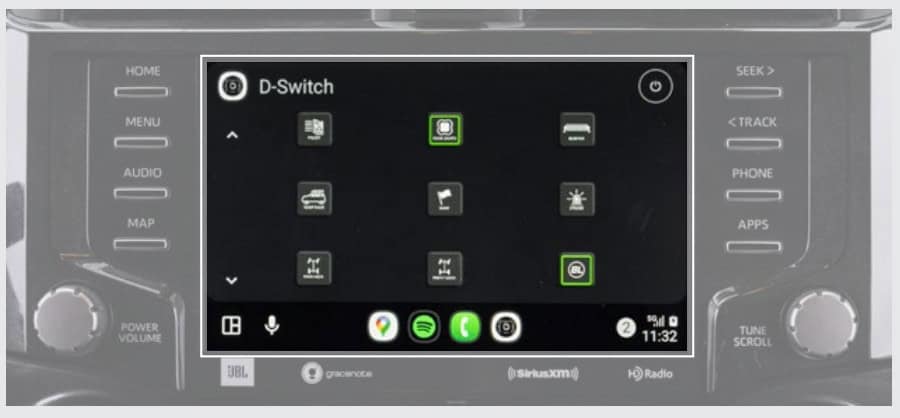
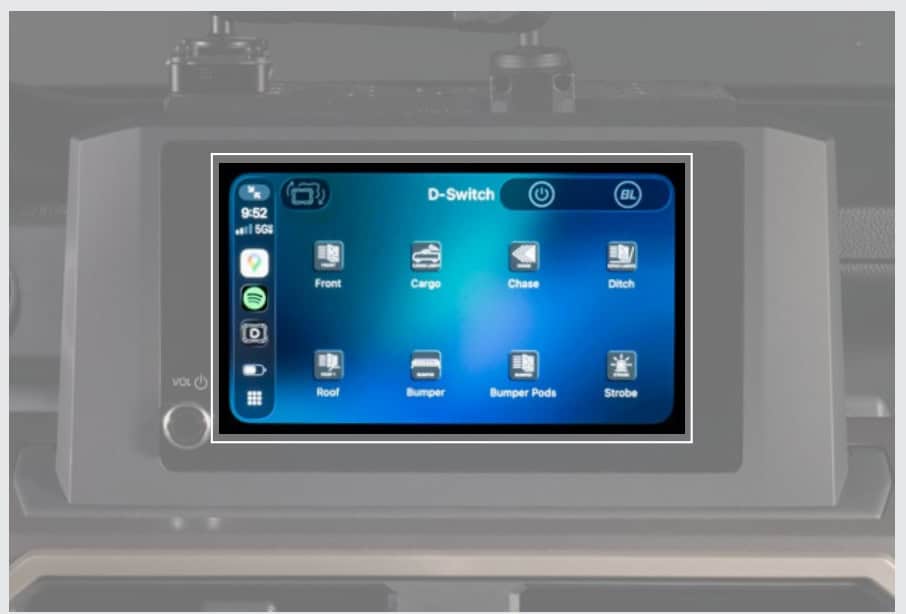
Configure the D-Switch in its Bluetooth app first. CarPlay and Android Auto show its custom button layout on a compatible connected infotainment system. Custom momentary functions are not supported through either interface.
On the Android phone, open Settings → Connected Devices → Connection Preferences → Android Auto → Customize Launcher. Enable D-Switch in the app list.
On the iPhone, open Settings → General → CarPlay. Choose the active vehicle/account, select Customize and add D-Switch from More Apps.
Phone menu wording can vary by operating-system version. Use Apple or Android support for current phone-to-vehicle connection troubleshooting.
Check the accessory’s actual current requirement and its configured limit. Stay within the channel rating. An oversized load may need a relay harness. Resolve the cause before turning the unit off and back on to reset the alert.
Check output polarity and connection security, then verify that the button is linked to the intended physical channel.
Check supply voltage against Auto Cutoff, the 125A battery-cable fuse and the M8 connections. Diagnose a blown fuse or wiring fault before replacing anything.
Use a voltmeter to confirm a discrete 12VDC signal and inspect the connection. Check the app’s linked channels. The supplied quick splices suit 18–22 AWG wires; data-bus wiring is not a compatible input.
No. A mechanical relay is an on/off device. Use only suitable on/off control and the correct aux-adapter wiring.
Yes. Configure the app names and channel assignments first. Clean and dry the physical buttons, then apply the supplied labels. The manual also links a blank label template.
Based on Diode Dynamics PP0236D, printed pages 11–30. Screen illustrations are manufacturer examples; firmware and phone interfaces may evolve. See the linked original manual for its full specifications and warranty terms.